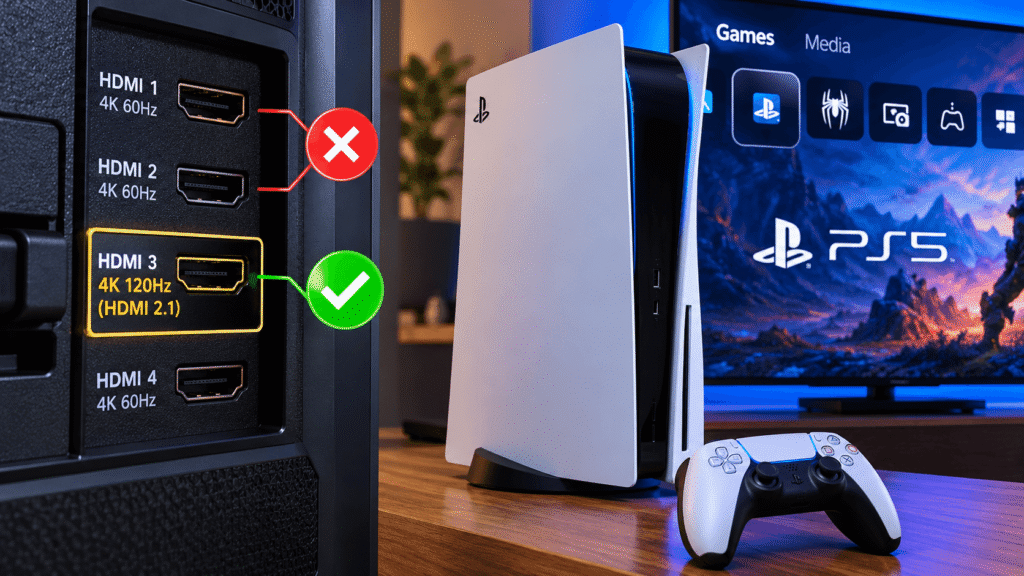
Your PlayStation 5 may be connected to an HDMI port that limits its gaming performance. Even if your games look sharp and run smoothly, the wrong TV input could prevent you from accessing features such as 4K at 120Hz, Variable Refresh Rate (VRR), and Auto Low Latency Mode (ALLM).
The good news is that you may not need a new TV, a different console, or expensive accessories. Checking your HDMI connection and adjusting a few settings could help you get more from your existing setup.
This guide explains which HDMI port is best for PS5, how HDMI 2.1 affects gaming performance, and how to confirm that your console is using the correct settings.
Key Takeaways
- The PlayStation 5 supports HDMI 2.1 and video output up to 4K at 120Hz.
- Not every HDMI port on a TV supports the same resolution, refresh rate, or gaming features.
- HDMI 1 and HDMI 2 are input numbers, not indicators of HDMI technology versions.
- For 4K 120Hz gaming, use a compatible HDMI 2.1 input and the HDMI cable supplied with your PS5 or a certified Ultra High Speed HDMI cable.
- VRR can reduce screen tearing, while ALLM can automatically activate a TV’s low-latency gaming mode.
- You can check supported video features through your PS5’s Screen and Video settings.
Which HDMI Port Should You Use for PS5?
The best HDMI port for PS5 is a TV input that supports HDMI 2.1 features, particularly 4K at 120Hz and VRR.
Modern televisions frequently include several HDMI connections, but their capabilities can differ.
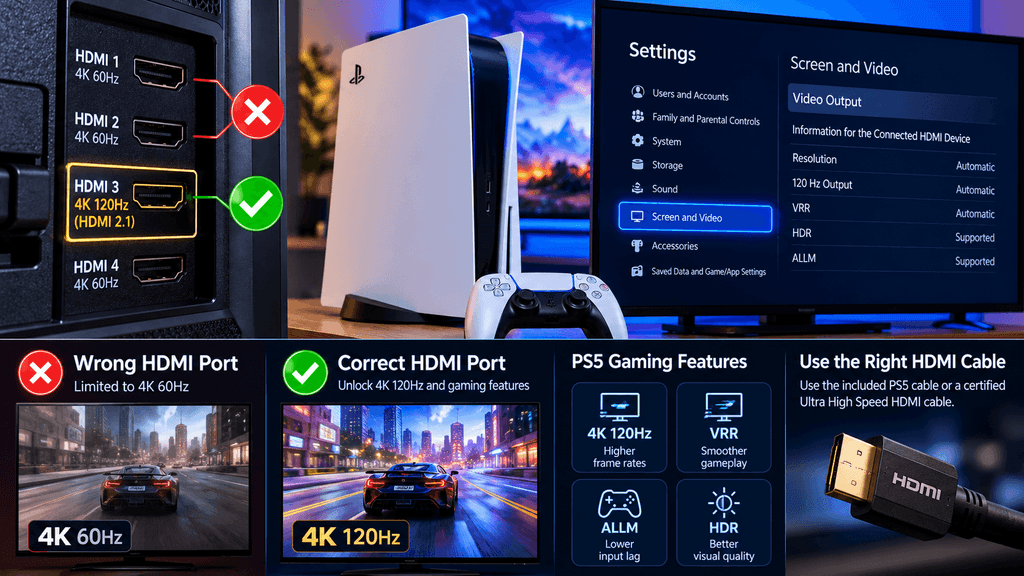
For example, a television might have four HDMI inputs, with only two supporting 4K 120Hz signals. Connecting a PS5 to one of the other inputs may still produce a clear 4K picture, but it could restrict the refresh rate to 60Hz.
Look for labels such as:
- HDMI 2.1
- 4K 120Hz
- 4K 120
- 120Hz
- Game or Gaming
These labels vary by manufacturer. Some TVs do not clearly identify their high-bandwidth inputs on the back panel.
If you cannot identify the correct port, search for your television’s exact model number and consult its official specifications.
Do not assume HDMI 3 or HDMI 4 is always the correct choice. The numbering differs between models.
HDMI 2.0 vs. HDMI 2.1: What’s the Difference for PS5?
HDMI 2.0 connections can still provide an excellent PlayStation 5 experience. However, HDMI 2.1 supports higher-bandwidth video modes that matter for advanced gaming displays.
| Feature | HDMI 2.0 | HDMI 2.1 |
|---|---|---|
| Typical 4K gaming output | Up to 60Hz | Up to 120Hz |
| 1080p high-refresh gaming | Supported on compatible devices | Supported |
| 4K at 120Hz on PS5 | Not supported | Supported with compatible equipment |
| Variable Refresh Rate | Depends on implementation | Supported by compatible devices |
| Auto Low Latency Mode | Device-dependent | Available on compatible devices |
| Best for | Standard 4K gaming | Advanced high-refresh gaming |
These are practical comparisons, not guarantees for every HDMI device. Actual capabilities depend on the television, HDMI implementation, cable, and console settings.
Does HDMI 2.1 Improve PS5 Graphics?
HDMI 2.1 does not directly increase a game’s rendering resolution, texture quality, or graphical detail.
Instead, it enables higher-bandwidth output modes.
For example, a game supporting 120 frames per second may appear smoother on a 120Hz display than on a 60Hz display.
However, using HDMI 2.1 does not automatically make every game run at 120 FPS.
The game must support a high-frame-rate mode, and some titles reduce their internal rendering resolution to achieve higher frame rates.
How to Check If Your PS5 Is Using the Correct HDMI Port
You can inspect your PlayStation 5’s video capabilities without installing additional software.
Step 1: Check the HDMI Connection
Locate the HDMI cable connecting your PS5 to your television.
Look at the input label on the television and record the port number.
Then consult your TV’s manual or manufacturer’s support website to verify whether that specific input supports 4K at 120Hz.
Step 2: Open the PS5 Video Settings
On your PlayStation 5:
- Open Settings.
- Select Screen and Video.
- Open Video Output.
- Find Information for the Connected HDMI Device.
- Review the supported resolutions, refresh rates, HDR capabilities, and VRR information.
You can also inspect Current Video Output Signal to see the video mode currently being transmitted.
Remember that the current output may change when launching a game that supports 120Hz.
Step 3: Configure 120Hz Output
In the PS5 Video Output menu:
- Set Resolution to Automatic.
- Set 120 Hz Output to Automatic.
- Set VRR to Automatic if your display supports it.
- Leave Video Transfer Rate on Automatic unless troubleshooting requires a change.
Your TV must support the relevant features for these settings to work.
Step 4: Enable Enhanced HDMI Mode on Your TV
Some televisions require an additional setting before accepting advanced HDMI signals.
Depending on the manufacturer, the option may be called:
- Enhanced HDMI Format
- HDMI Enhanced Mode
- Input Signal Plus
- HDMI Deep Color
- Enhanced Format (VRR)
These names are examples; the exact setting varies by television.
On compatible Sony BRAVIA televisions, the setting may appear under the external input or HDMI signal format menu.
After enabling the correct mode, check the PS5’s connected HDMI device information again.
Why Your PS5 Might Be Stuck at 60Hz
If your PlayStation 5 will not output 120Hz, several factors could be responsible.
1. Your Television Only Supports 60Hz
A 4K television is not automatically a 120Hz television.
Many displays support 4K at 60Hz but cannot display 120Hz signals at that resolution.
Check the TV’s specifications rather than relying on marketing terms such as motion rate or motion enhancement.
2. Your PS5 Is Connected to the Wrong Input
Some televisions provide HDMI 2.1 capabilities on only selected ports.
Moving the PS5 cable to a compatible input may resolve the limitation.
3. The HDMI Cable Is Inadequate
Sony recommends using the HDMI cable supplied with the PlayStation 5.
An appropriate Ultra High Speed HDMI cable is another option for 4K 120Hz connections.
Older or lower-bandwidth cables may restrict supported modes or cause intermittent signal problems.
4. The Game Does Not Support 120 FPS
A 120Hz display does not guarantee 120 FPS gameplay.
Some games operate at 30 or 60 FPS, while others include optional performance modes.
Check the individual game’s graphics settings for high-frame-rate options.
5. A Soundbar or Receiver Is Limiting the Connection
If your console connects through an AV receiver, HDMI switch, or soundbar, that device must support the desired signal format.
For troubleshooting, connect the PS5 directly to the TV and test again.
What Is VRR on PS5, and Why Does It Matter?
Variable Refresh Rate, commonly called VRR, allows a compatible display to adjust its refresh timing to match changes in the console’s video output.
This helps reduce visible screen tearing and can improve perceived smoothness when frame rates fluctuate.
VRR is especially useful in games where performance varies during demanding scenes.
However, VRR requires a compatible display and HDMI connection.
To check VRR on PS5, open:
Settings → Screen and Video → Video Output → VRR
If VRR is unavailable, verify the television’s specifications, HDMI input, firmware, and input configuration.
Not every television with an HDMI 2.1-labeled connection supports every HDMI 2.1 feature.
What Is ALLM on PlayStation 5?
Auto Low Latency Mode (ALLM) allows a compatible television to switch automatically to a low-latency display mode when gaming.
Televisions often use additional image processing to enhance movies and television programs.
That processing can increase the delay between pressing a controller button and seeing the corresponding action on screen.
Game Mode typically reduces this processing to improve responsiveness.
ALLM helps automate that transition.
If your television does not support ALLM, you may still be able to select Game Mode manually.
Can You Use PS5 With an HDMI 2.0 TV?
Yes. The PlayStation 5 works with many televisions that do not support HDMI 2.1.
A compatible HDMI 2.0 connection can provide 4K gaming at up to 60Hz.
That is sufficient for many PS5 games.
You do not need to replace a functioning 4K 60Hz television simply because it lacks HDMI 2.1.
However, if your goal is 4K output at 120Hz, you will need a display and HDMI connection that support that mode.
Does HDMI 1 or HDMI 2 Matter for PS5?
The HDMI input number does not determine gaming performance.
HDMI 1, HDMI 2, HDMI 3, and HDMI 4 are simply labels identifying physical inputs.
They are not the same as HDMI technology versions such as HDMI 2.0 and HDMI 2.1.
An HDMI 1 input could support more advanced gaming features than HDMI 3 on one television, while another model may have the opposite arrangement.
The correct choice depends entirely on the specifications of the individual input.
PS5 HDMI Troubleshooting Checklist
If your PlayStation 5 is not delivering the expected resolution or refresh rate, use this checklist.
- Confirm that the television supports the desired resolution and refresh rate.
- Connect the PS5 to the appropriate HDMI input.
- Use the original PS5 HDMI cable or an appropriate Ultra High Speed HDMI cable.
- Enable the television’s enhanced HDMI input mode where required.
- Set the PS5 resolution to Automatic.
- Enable 120Hz output when supported.
- Enable VRR on compatible displays.
- Update the television’s firmware.
- Test a game with a supported 120 FPS mode.
- Bypass intermediary HDMI equipment while troubleshooting.
If problems continue, try another compatible HDMI port or cable before assuming the console itself is defective.
Frequently Asked Questions About PS5 HDMI Ports
What is the best HDMI port for PS5?
Use an HDMI input that supports 4K 120Hz and the gaming features you want, such as VRR and ALLM. On compatible TVs, this is typically an HDMI 2.1-capable input.
Does the PS5 need HDMI 2.1?
No. The PS5 can work with HDMI 2.0 televisions. HDMI 2.1 is important when you want features such as 4K output at 120Hz.
Can the wrong HDMI port reduce PS5 performance?
The wrong port can restrict the video signal delivered to the television. For example, it may prevent 4K 120Hz output even when the PS5 and TV support that mode. It does not reduce the console’s underlying processing power.
Can PS5 run 120 FPS without HDMI 2.1?
Some lower-resolution 120Hz modes can work over HDMI 2.0 on compatible displays. However, HDMI 2.1 is the appropriate connection for 4K 120Hz output.
Does HDMI 2.1 reduce input lag?
HDMI 2.1 itself does not guarantee lower input lag. Compatible features such as ALLM can help by activating the television’s low-latency gaming mode.
How do I know whether my PS5 is displaying 120Hz?
Open Settings → Screen and Video → Video Output and inspect the current video output information. For a meaningful test, launch a game that supports 120Hz output and enable its high-frame-rate mode.
Do all HDMI 2.1 ports support VRR?
No. HDMI 2.1-related features vary by device. Verify VRR support in the television’s official specifications.
Should I buy a new HDMI cable for PS5?
Not necessarily. The HDMI cable included with the PlayStation 5 is recommended by Sony and supports the console’s advanced video output. Replace it only if it is damaged, unsuitable for your installation, or causing connection problems.
Final Verdict: Check Your HDMI Port Before Upgrading Your Setup
The PlayStation 5 supports advanced display technologies, but getting the most from them requires the correct combination of television, HDMI port, cable, and settings.
If your TV supports 4K 120Hz, verify that your console is connected to the input designed for that feature.
Then check the PS5’s video output information and enable the appropriate display settings.
A simple connection check could unlock features that your existing equipment already supports.
For players using a 4K 60Hz television, there is no need to worry. The PS5 can still deliver an excellent gaming experience without HDMI 2.1.
The important point is to understand what your display supports and configure your console accordingly.
Sources and References